Disable The CBR Tab
This document explains how to make Credit Report Details inaccessible for a particular user level. This principle may be applied to any tab that you want to disable for a particular user level.
Access Rights Form

Form Rights Form
Disable The CBR Tab
Please do this process when no one is signed into Collect!.
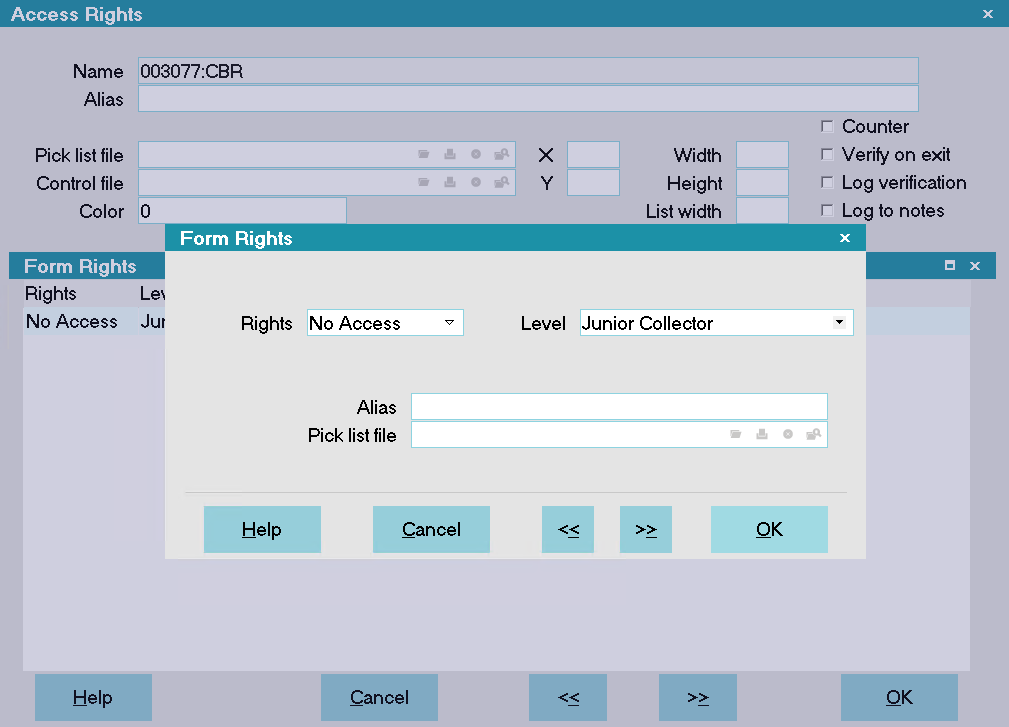
Form Rights for No Access
 If you want to prevent another user level from accessing the CBR tab, press F3 to open a new Form Rights form and do Steps 6 and 7 again. Repeat this for as many user levels as you need.
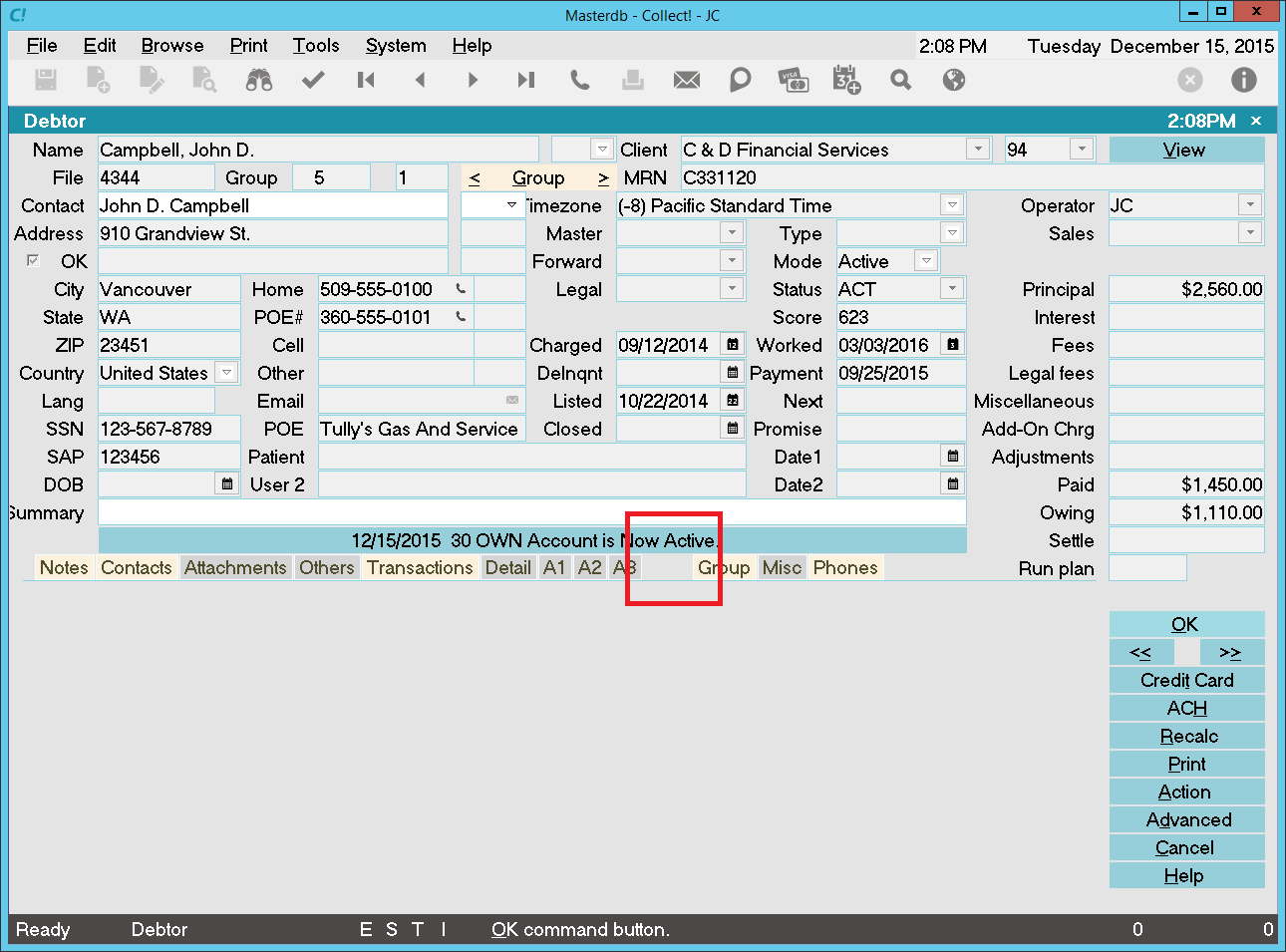
CBR tab hidden for user level
- Sign into Collect! as an operator with user level 99 and stop at the Main Menu.
- Select System from the top menu bar and then select Access Rights from the drop-down choices. This will display a list of all the fields and forms in Collect!. Each item has its own ID code.
- Scroll down the list until you get to the entry for debtor:subform:cbr This is the CBR tab on the Debtor screen.
- Select the item or press Enter when it is highlighted. The Access Rights form for the CBR tab will be displayed.
- Select the New button to create a new one.
- In the Rights field, select No Access. In the Level field, select the operator user level that you want to take access away from. The screen shot shows Level 60.
- Select OK to close the Form Rights screen.
- When you have set all the user levels that you need and have selected OK to close the last Form Rights form, select OK again to close the Access Rights form. This will return you to the Access Rights list.
- Exit out of Collect!. Sign back in as an operator with one of the user levels that you set and verify that the CBR tab is inaccessible.