How To Setup Multiple Debtors For For Credit Bureau Reporting Using Batch Processing
It is possible to batch process multiple debtors before reporting to Credit Bureaus. Then you can set up a credit report on this batch of accounts. This is especially useful for accounts that have just been imported, but you can process any batch of accounts. We will demonstrate selecting records to create the batch that we will process.
This process should only be used on NEW accounts that have not been previously reported UNLESS you specifically want to use batch processing to change the CBR status on a volume of accounts (for instance, sending them as "Delete from bureau.")
 Batch processes tax the system, simulating the actions of one hundred users at a time! For fastest batch operations, run the processes on the server.
First, you will want to determine the records to include in your batch process.
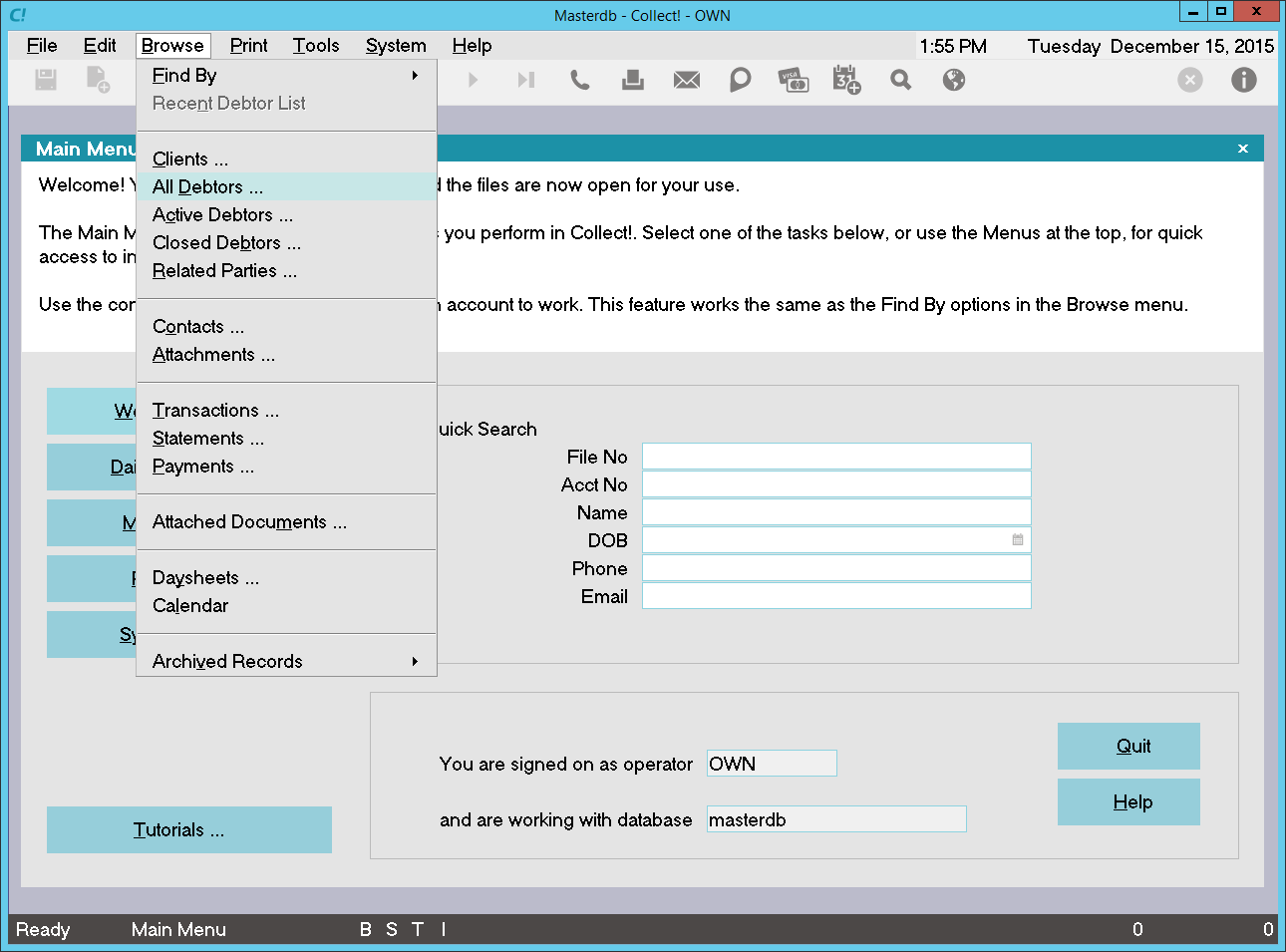
Select All Debtors from the Browse Menu
Through the Search Criteria form, you can reduce your Debtor list to display only the records you want. For example, highlight "Mode" in the field column. Now, you can select the From and To boxes. Select "Active" from the list that displays. Your search will include all active debtors. In the Range column leave "Include' or change it to "Exclude."
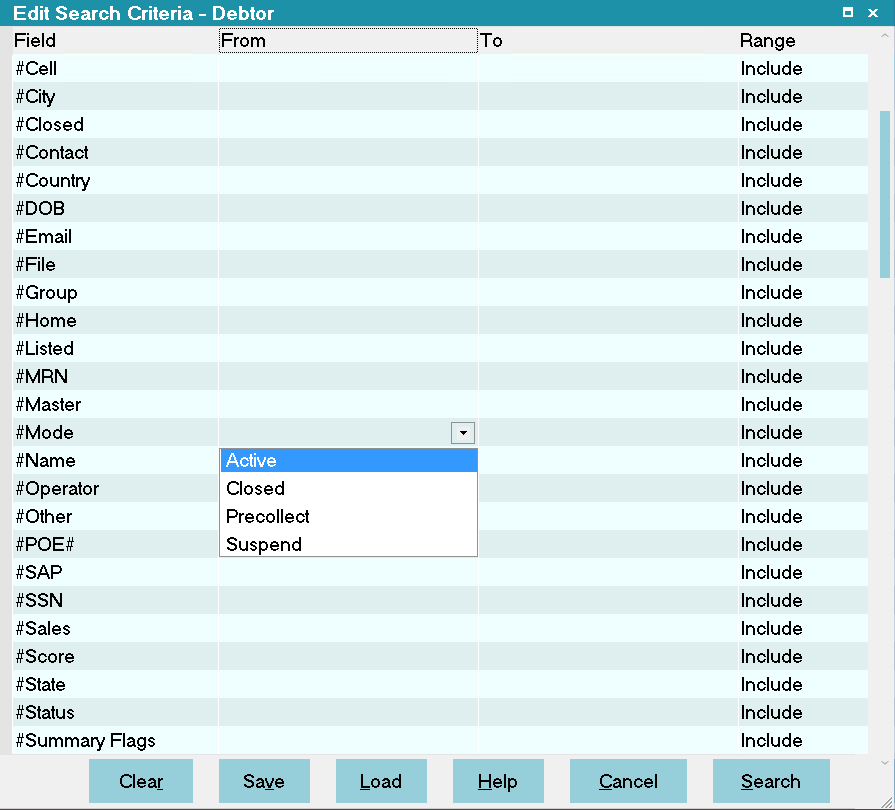
Edit Search Criteria for Mode
Choose other fields and set your criteria as needed, either including or excluding records as your needs require. When you are ready, press the SEARCH button at the bottom of the form.
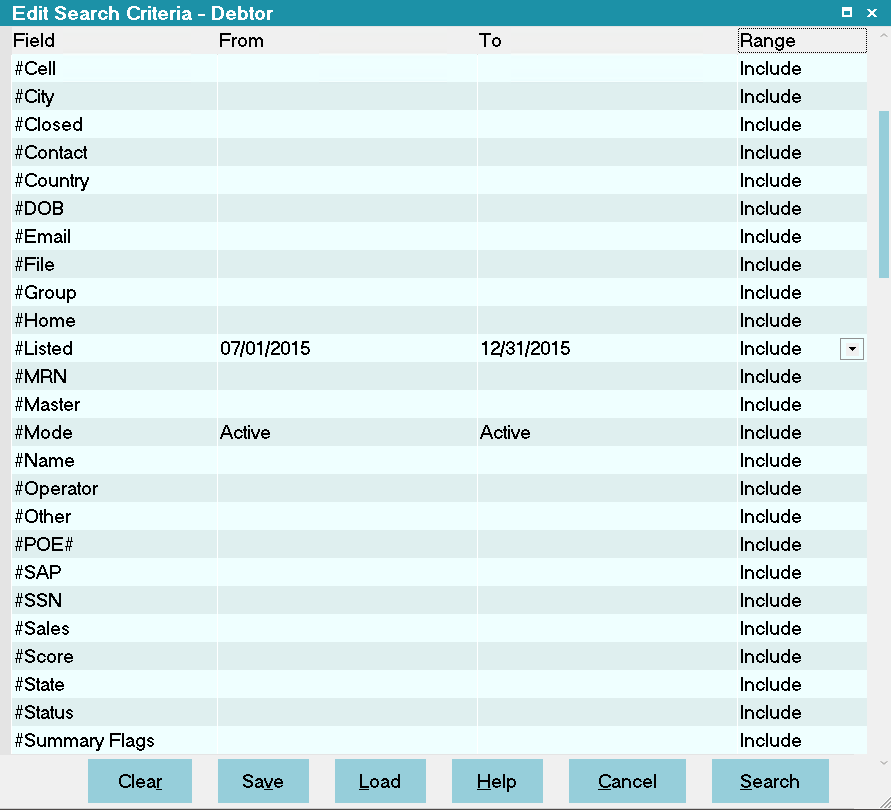
Select SEARCH to Filter Records
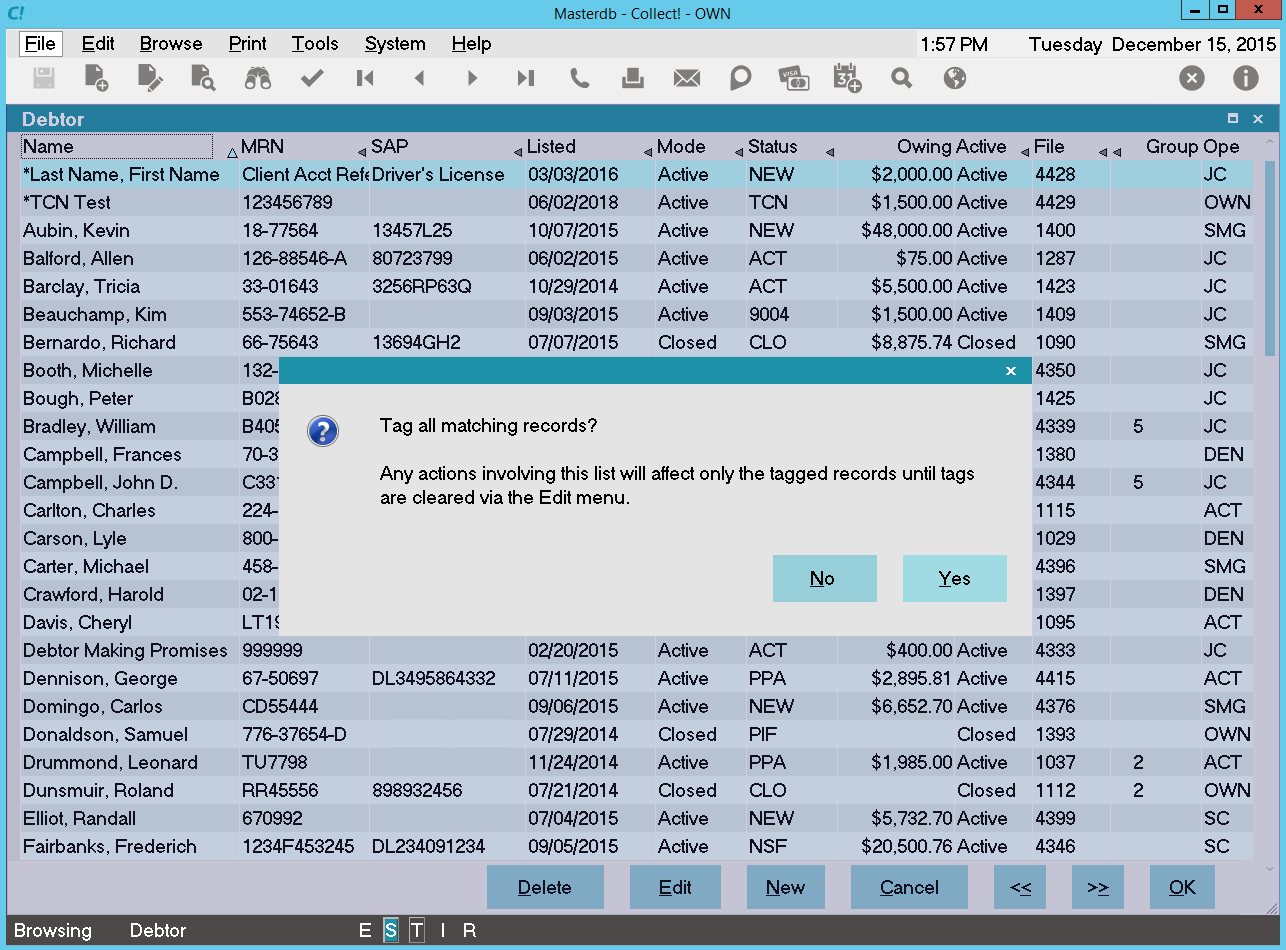
Tag All Matching Records
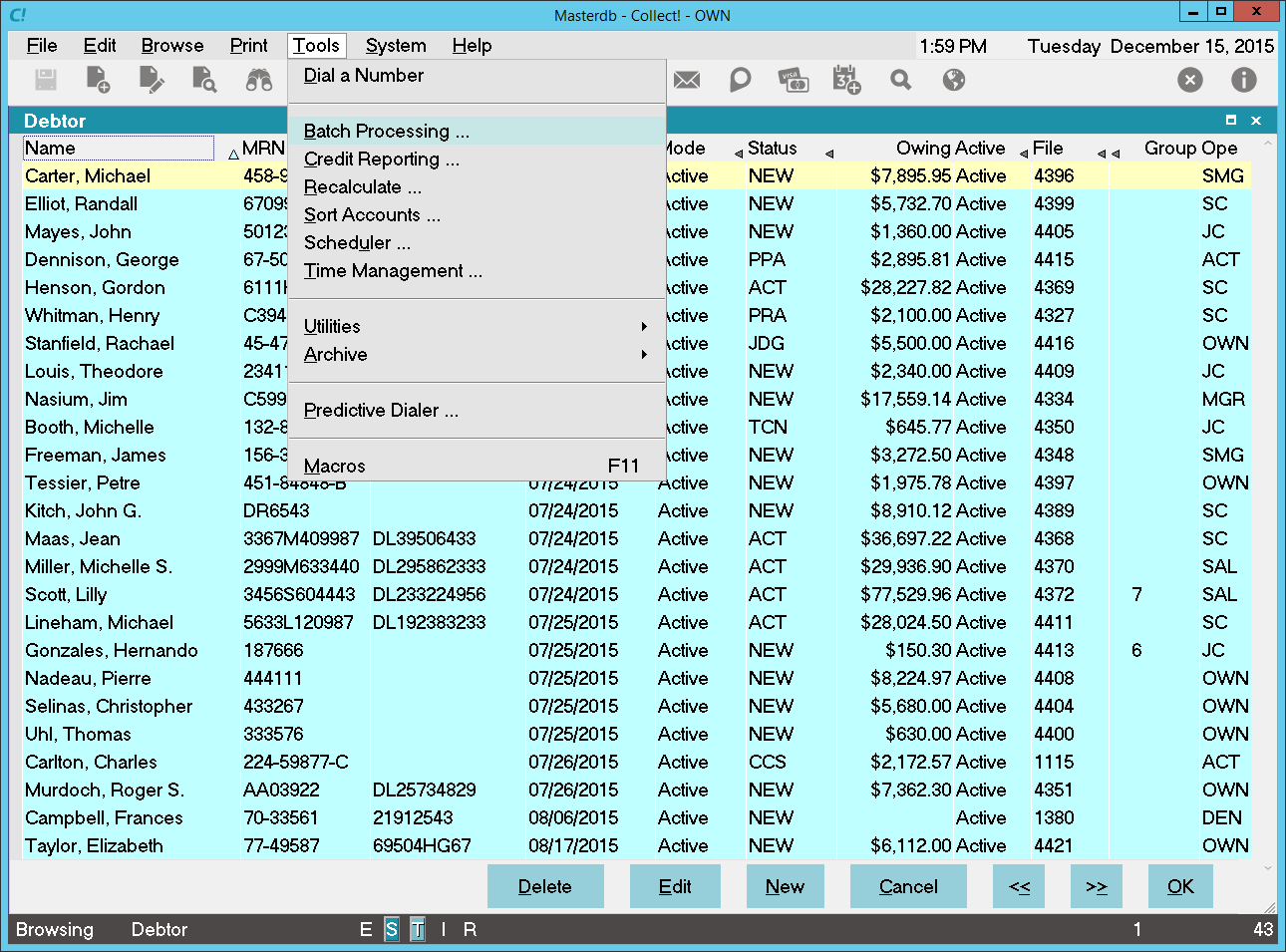
Tools Menu Batch Processing Option
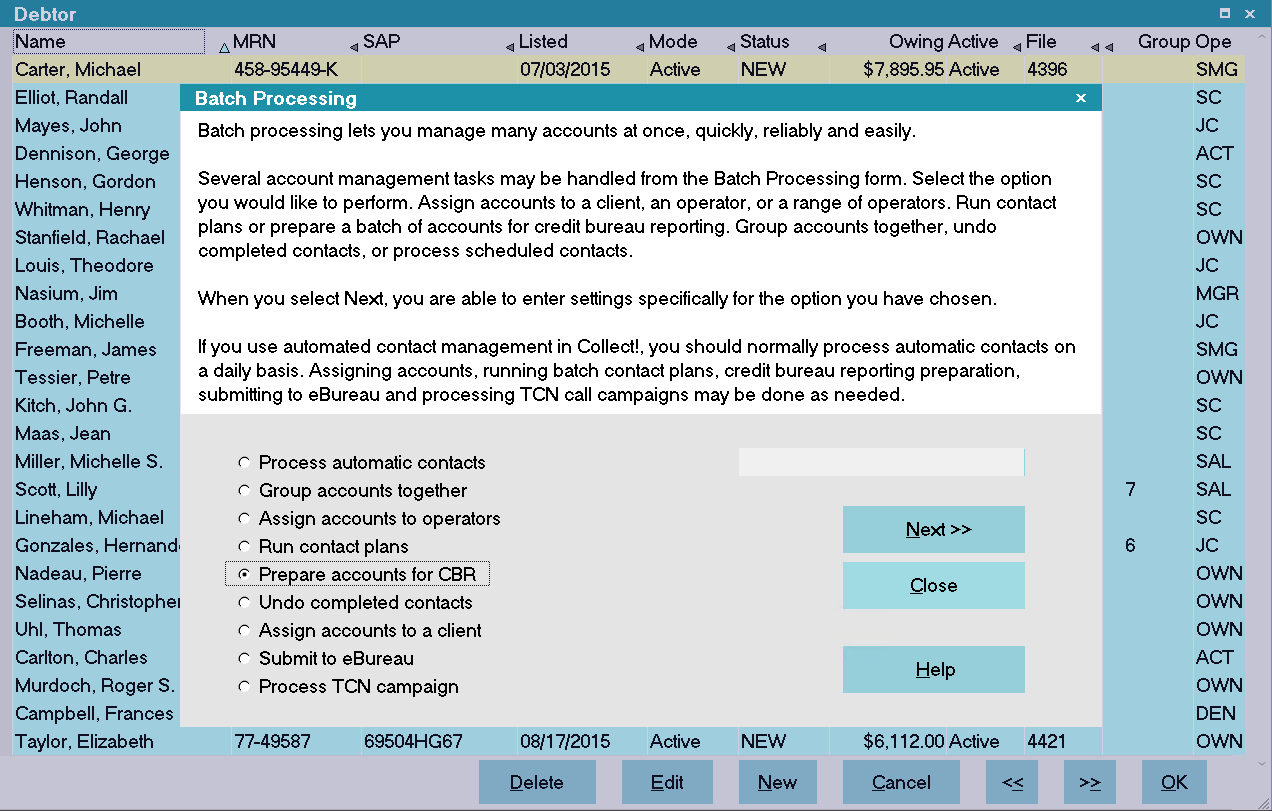
Prepare Accounts for Reporting
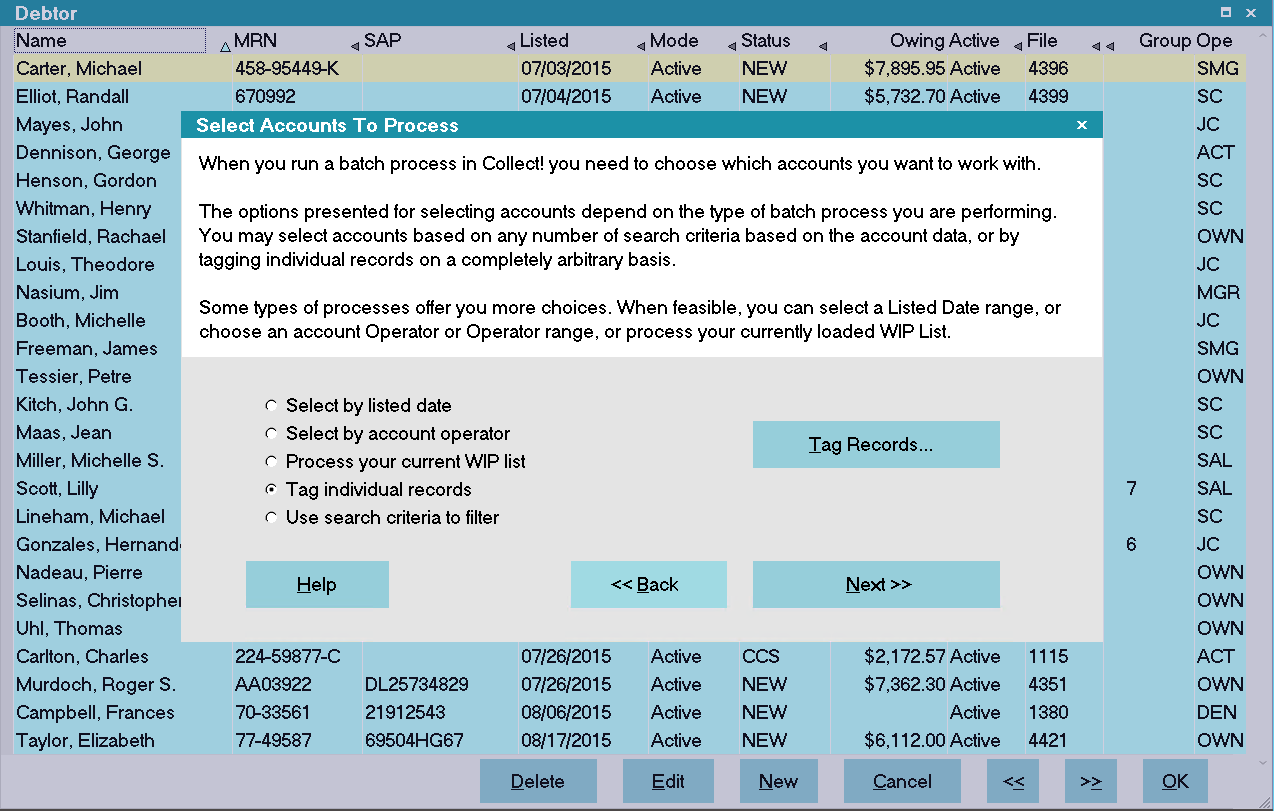
Tag Individual Records
Select Bureau Report Details Form
 You may need to select "Newly Opened Account" for the Transaction Type if you are setting up these accounts for first time reporting. "Update Account" applies to accounts that you are already reporting.
If you have Debtors in your search criteria that belong to Clients who are not set to report to the bureau, Collect! will skip these debtors during the preparation phase. Only Debtors belonging to Clients setup to report will be prepared for CBR reporting.
If you are marking accounts to be deleted, and any of those accounts have the REPORT COSIGNER flag set to YES, this process will mark the Cosigner's ECOA code to 'Delete Borrower.'
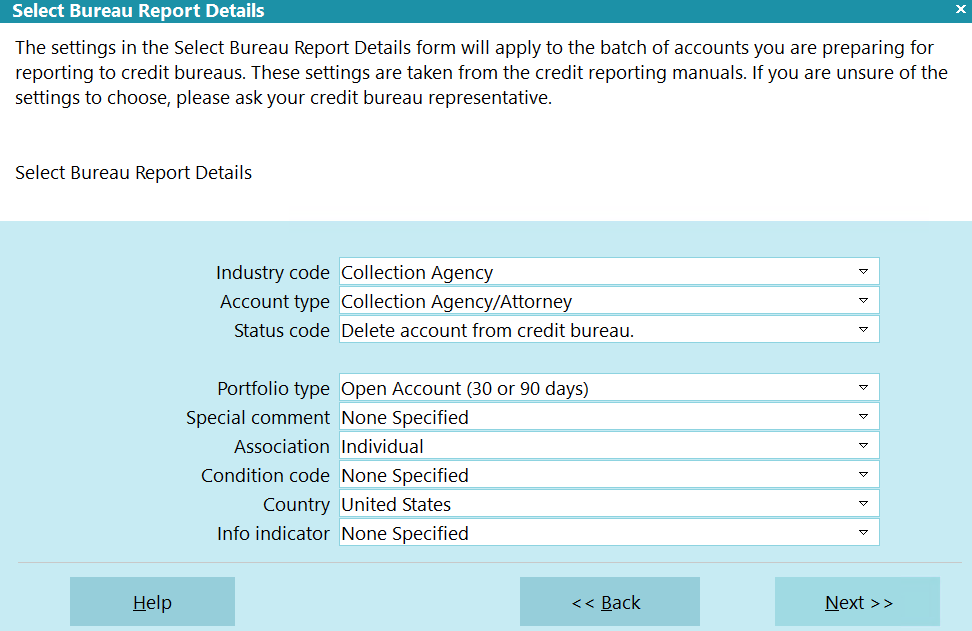
Credit Reporting Details for This Batch
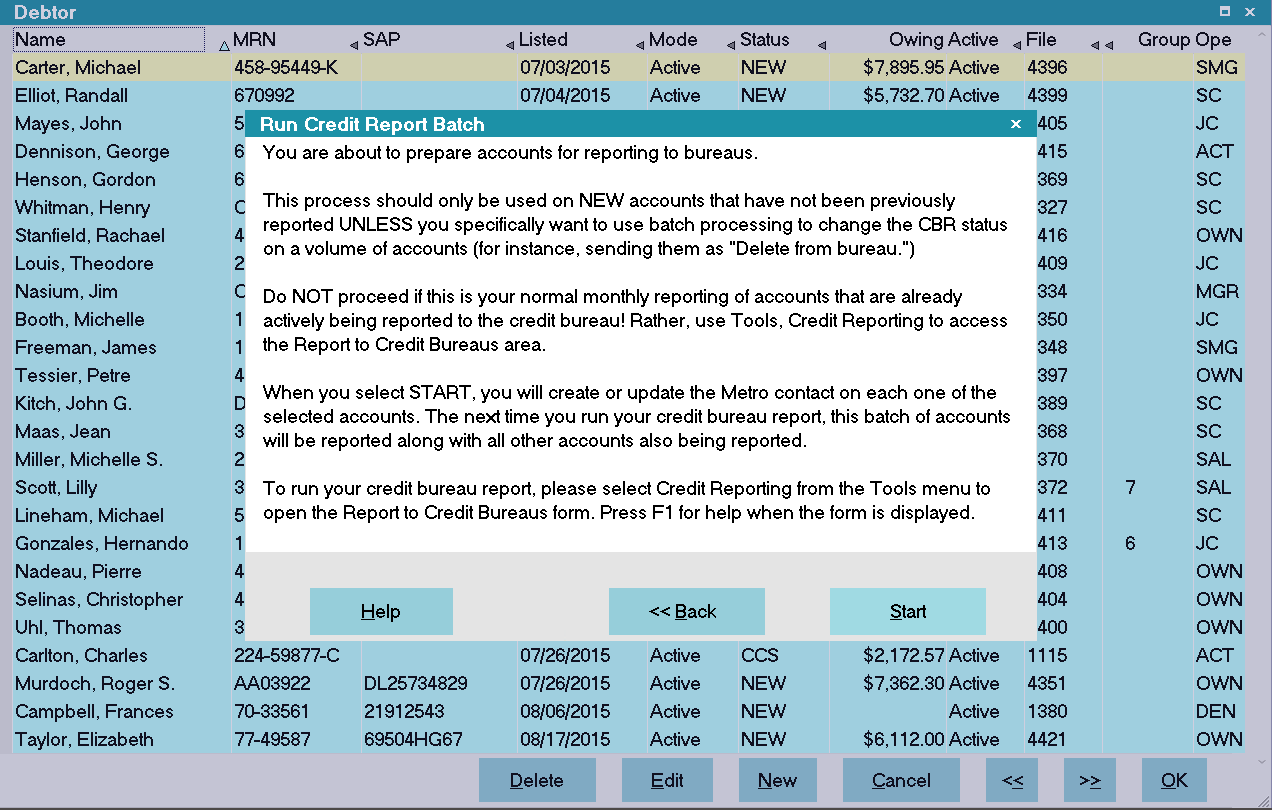
Run Credit Report Batch
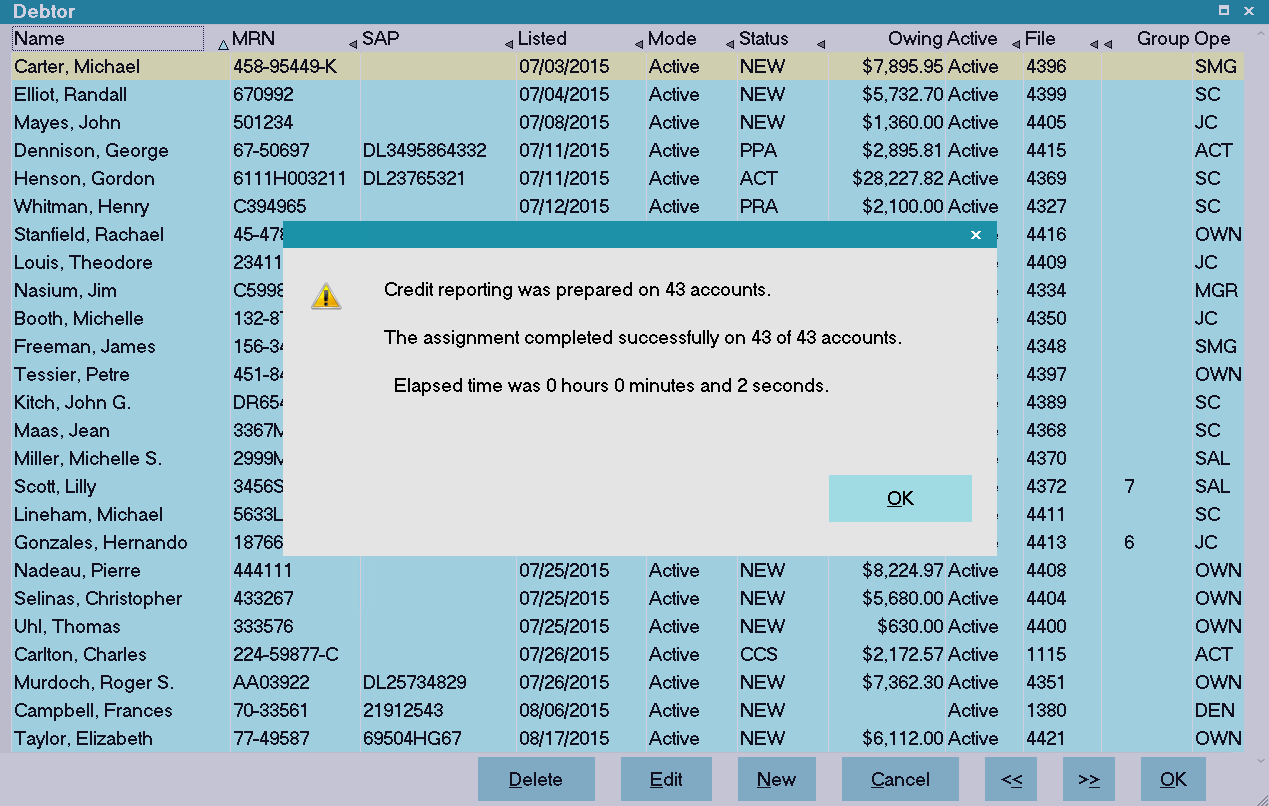
Batch Processing Completed
- Sign into Collect! as you would normally.
- Select Browse from the top menu bar and then select All Debtors from the drop-down choices.
- Press F6 to display the Edit Search Criteria for the Debtor list.
- When asked, select YES to tag whatever records that the Search returns.
- Your search will be highlighted in blue. Now select Tools from the top menu bar and then select Batch Processing from the drop-down choices.
- The Batch Processing form is displayed. In this form, select "Prepare accounts for reporting to credit bureaus." Select the NEXT button.
- When you have chosen Prepare accounts for reporting to credit bureaus and have pressed Next, the Select Accounts To Process form will appear. In this form, select "Tag individual records." Press NEXT.
- After you press Next in the Select Accounts To Process form, the next form to display will be the Select Bureau Report Details form. The information in this form looks very similar to the settings in the Credit Report Preferences form. The values are set by default. It is your responsibility to ensure that the settings meet your requirements.
- Press NEXT when you are ready.
- The next form, Run Credit Report Batch, warns that you are about to set up a credit report on a batch of accounts. By pressing START, you begin to prepare information in the accounts. The next time you create a set of files for the Credit Bureau, this batch of accounts will be reported along with the other accounts.
- After you press START, Collect! processes the accounts and reports that credit reporting was prepared on a number of accounts. Press OK.
Be sure to clear the list of tagged records via the Edit menu when you are finished.
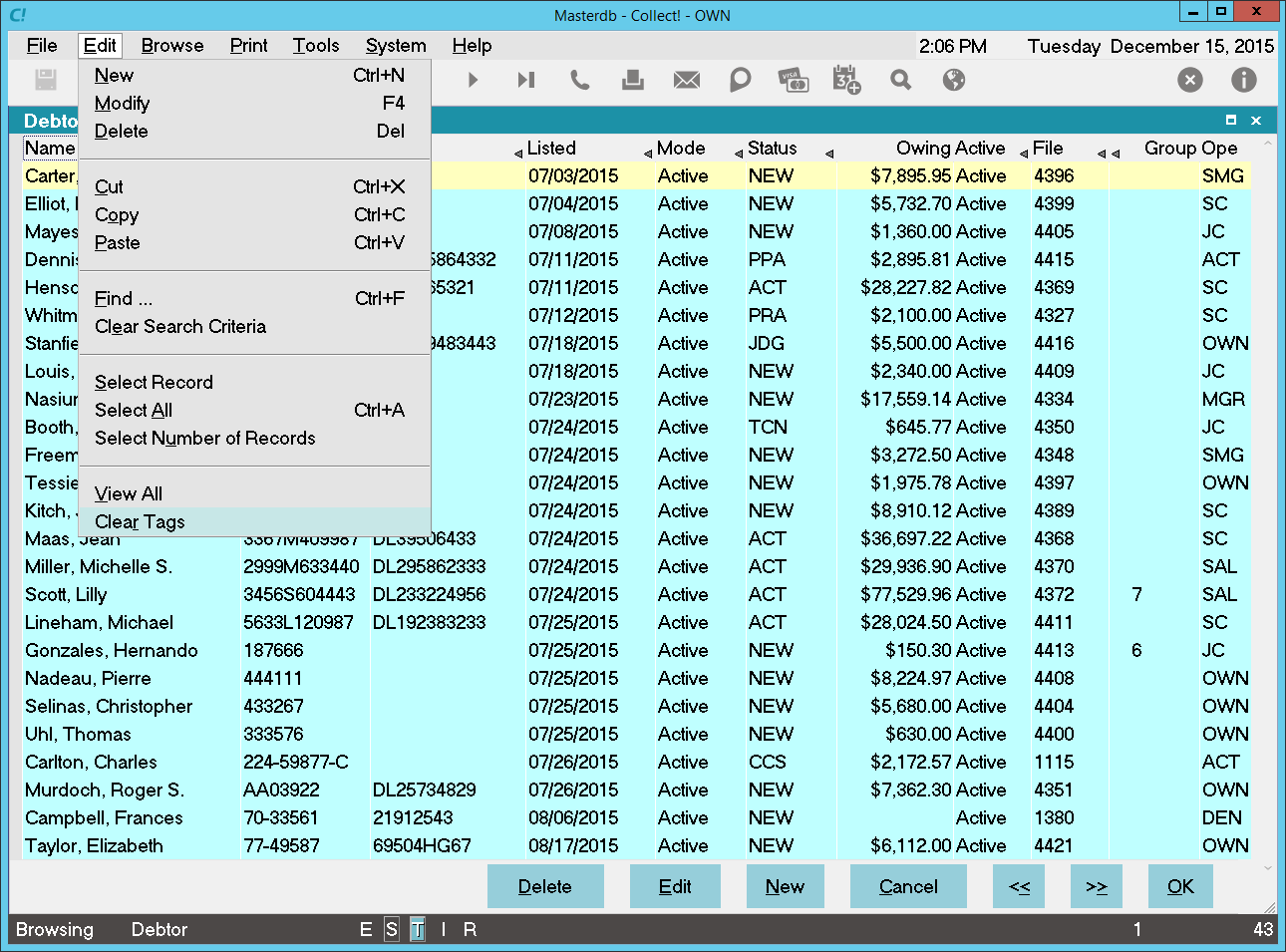
Clear All Tags
Please refer to Help topic, How To Run a Credit Bureau Report for information about the next step, generating the file to send to the credit bureau.
Batch Processing Several Sets Of Accounts
You can run this process many times on different sets of accounts before you report to the Credit Bureaus. To do this, go back to the list of tagged debtors. Select Edit from the top menu bar and then select Clear Tags from the drop-down choices.
Clear All Tags
Select Edit again and then select Clear Search Criteria. Press F6 and build a new Search Criteria.
Follow all the steps given above to prepare any new batch of accounts.
Preparing accounts in this way flags them for reporting by creating a Metro Contact for each account you have chosen. The next time you create a set of files for the Credit Bureau, these accounts will be reported.